
User Forwarding Guide
This guide covers the 2 types of common call forwarding types in Evolution:
- Forwarding from the Evolution User interface
- Directly on the phone itself
FMFM Forwarding via User Interface
To enable or disable this type of forward you will need to access the user interface.
The default setting is disabled/call forwarding off as shown here:

In this example forwarding is enabled with only the first step dialing extension 5025:

The example below shows forwarding enabled with only the first step dialing 6025554878 for 20 seconds:

In this example the FMFM forwarding is enabled, dialing extension 5025 and 6025554878 simultaneously:

Forwarding enabled from within the Evolution user interface, dialing extension 5025 for 20 seconds followed by dialing 6025554878 for 20 seconds:

Another example of forwarding enabled dialing extension 5025 for 20 seconds followed by dialing extension 5025 and 6025554878 simultaneously for 20 seconds:

The CID overwrite field can be used to change the Caller ID of the forwarded call. In this example we are setting the forwarded call Caller ID to 6025987878:

Please note: CID over write may not function in all scenarios
due to upstream carrier caller ID controls and FCC regulations
Forwarding directly from the Phone
Forwards set directly on the phone are typically decentralized and may require a user to manually disable the forward on the phone itself (in some cases even after a reboot of the device). Forwarding calls in the User Interface allows centralized control of call forwarding.
Poly/Polycom Forwarding
The call forward settings on a Poly phone can be accessed by pressing the 'Forward' button on the idle screen:

After which you will be prompted with the three types of call forwards available on the phone, as well as the current stat of the forwards:

'Call Forward Always' enabled to destination 8885554868:


The idle screen on a phone with a call forward enabled:
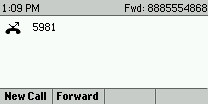
To disable an active forward you will need to access the forwarding menu from the idle screen, followed by selecting the forward type that is enabled and then selecting the disable button on the lower right:

After which the idle screen will no longer display the 'arrow' indicating an active forward:

The forwarding menu is also also accessible from the phone's Menu —> Settings —> Features —> Forwarding